![CaptureNow-Logos_v2_horizontal_color.png]](https://kb.capturenow.com/hs-fs/hubfs/CaptureNow-Logos_v2_horizontal_color.png?height=40&name=CaptureNow-Logos_v2_horizontal_color.png)
When you integrate CaptureNow with your FileVine, new calls are automatically logged in FileVine. We integrate the basic contact information as well as call summary notes with the case type questions and answers provided by the caller. The data we collect during a call is mapped to most, if not all, of FileVine's standard fields.
To set up the integration you need to provide the FileVine APIKey, ApiSecret, FilevineApiUrl, and ProjectTypeid. The screenshot below shows which boxes the information will be entered. The FileVine integration configuration is accessed via the Company Settings section --> Integrations Tab --> Select FileVine from list and you should see the screenshot below.
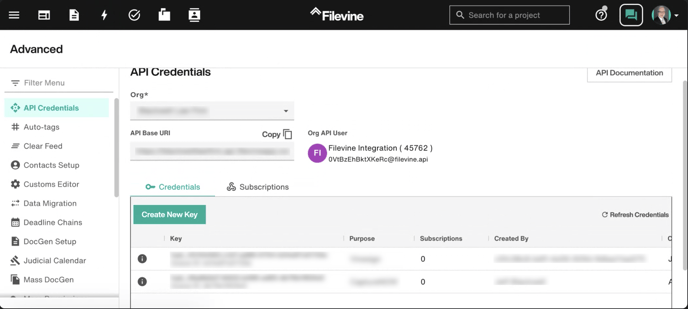
To create a new API Key for CaptureNow, the screenshot below shows the steps to creating a new API Key. With admin credentials log in to your Filevine account. On the left pane, go to Advanced settings and the first option is API Credentials. ***If API Credentials is not listed as an option, reach out to Filevine to provide permission.*** Click on "Create New Key".
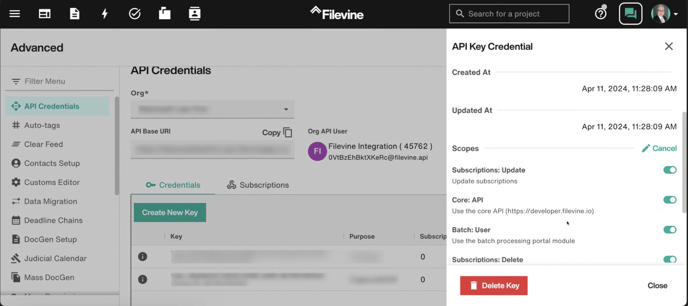
After creating new key, make sure all of the scopes are turned on by having radio dial button all to the right. Look at screenshot below for reference.
After retrieving the APIKey and APISecret, you will be asked to enter your FilevineApiUrl. Depending on how you use the software through the app or website, would determine your URL. You can find that info through this link provided by Filevine: FilevineApiUrl
Below are steps to creating a Project Type within Filevine that will lead to ProjectTypeId:
In Filevine, under Advanced there will be a section for "Custom Editor". Once you are on that page, you will see the screenshot below. Dropdown "Choose a Project Type" and select Create New Project Type.
You will then see this pop up box. Fill this exactly as the screenshot below and Visible to this Org must be checked.
After you have create the new Project Type, confirm by going into the Project Type dropdown and you should now be able to view CaptureNow.
One piece of information that still needs to be filled is the ProjectTypeId.
You can find this in Filevine, once you have created a new Project Type for CaptureNow. When you are in the Project Hub page and you have clicked into CaptureNow, above in the URL bar you will look for the "projectType=..." as shown in the picture below. ***Only input the numbers following the "=".
After inputting the information on CaptureNow portal, click Save. Next to Filevine, there should be in green "connected" symbol. You can also Test integration and in Filevine system there should be a Test project.