![CaptureNow-Logos_v2_horizontal_color.png]](https://kb.capturenow.com/hs-fs/hubfs/CaptureNow-Logos_v2_horizontal_color.png?height=40&name=CaptureNow-Logos_v2_horizontal_color.png)
Step 1: Set Up the Webhook Trigger
-
In Zapier, create a new Zap.
-
Choose Webhooks by Zapier as the trigger app.
-
Select Catch Hook as the trigger event.
-
Zapier will provide you with a custom webhook URL. Copy this to use with your external system (e.g., CaptureNow).
Step 2: Test the Webhook
-
Send a sample call from your system to the webhook.
-
Zapier will capture the sample data and display it in the test window.
-
Confirm the fields like First Name, Last Name, Phone Number, Email, Case Summary, etc.
Captured Data Sample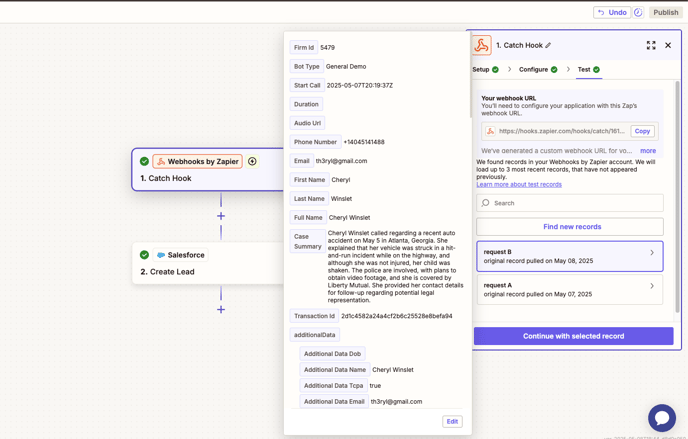
Step 3: Connect Salesforce as the Action App
-
Add an Action step.
-
Choose Salesforce as the app.
-
Select Create Lead as the event.
Step 4: Map Webhook Data to Salesforce Fields
-
Map the fields from your webhook payload to corresponding Salesforce lead fields (e.g., First Name, Last Name, Email, Phone).
-
Optional: Add static or conditional values (e.g., Lead Source = “CaptureNow”).
Salesforce Field Mapping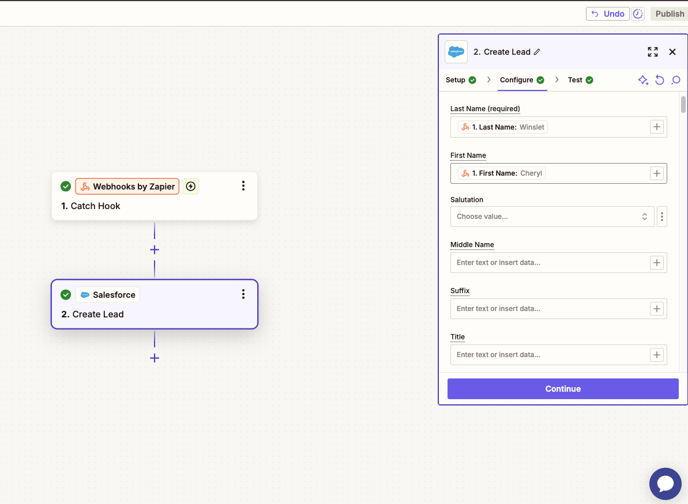
Step 5: Verify in Salesforce
-
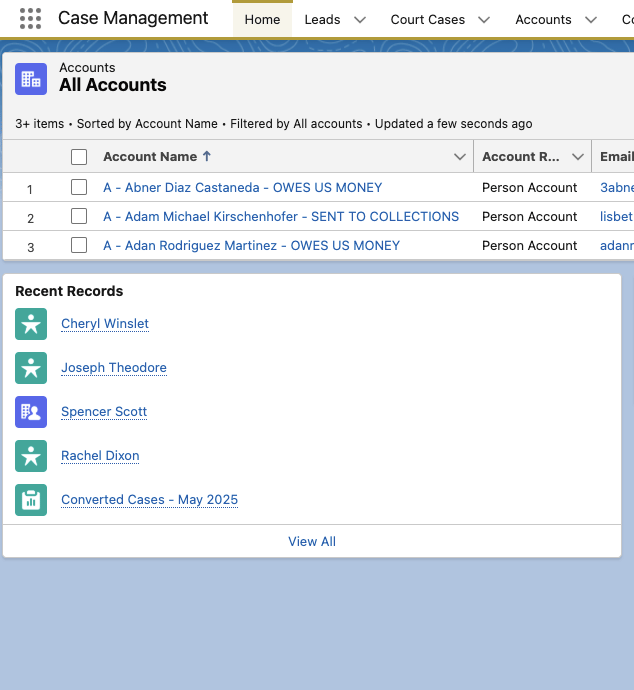
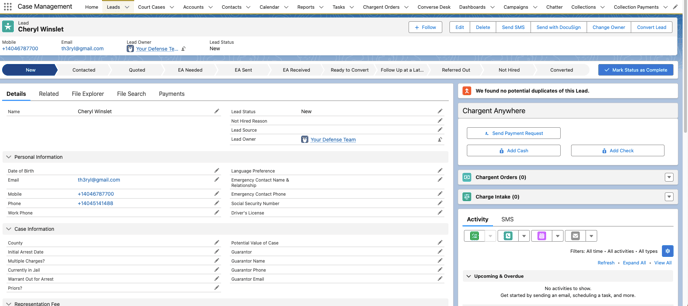
Once the test is successful, log into Salesforce and navigate to Leads.
-
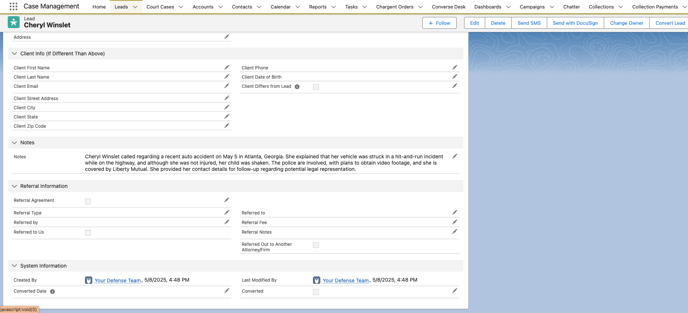
Confirm that a new record is created with the correct data.
Example Lead in Salesforce